



If you’re diving into Android development in 2026, you know the right tools can make or break your workflow. The battle for Integrated Development Environments (IDEs) has evolved, providing developers with even smarter, faster, and more efficient tools to create something out of their minds.
And let’s be honest, with so many IDEs out there claiming to be the best, it can feel a bit overwhelming to pick one.
If you are a professional Android developer or a beginner, using an appropriate IDE can significantly change the possibility of creating, testing, and deploying applications. In this blog, you’ll discover the best IDEs for Android development in 2026 and a guide to choosing the perfect tool to take your idea into a smooth voyage.
What is IDE Software?
An Integrated Development Environment, or IDE, is your one-stop shop for creating, running, and debugging applications. You can imagine it as a single room containing all the necessary instruments, similar to a code editor, a compiler, a debugger, and more project management tools integrated into one.
For the Android platform, IDEs are intended to support languages such as Java and Kotlin and features such as inbuilt emulators, and handy plugins that are intended to ease app development. This is like having someone sit by your side and guide you while developing.
The Best IDEs for Building Android Apps in 2026
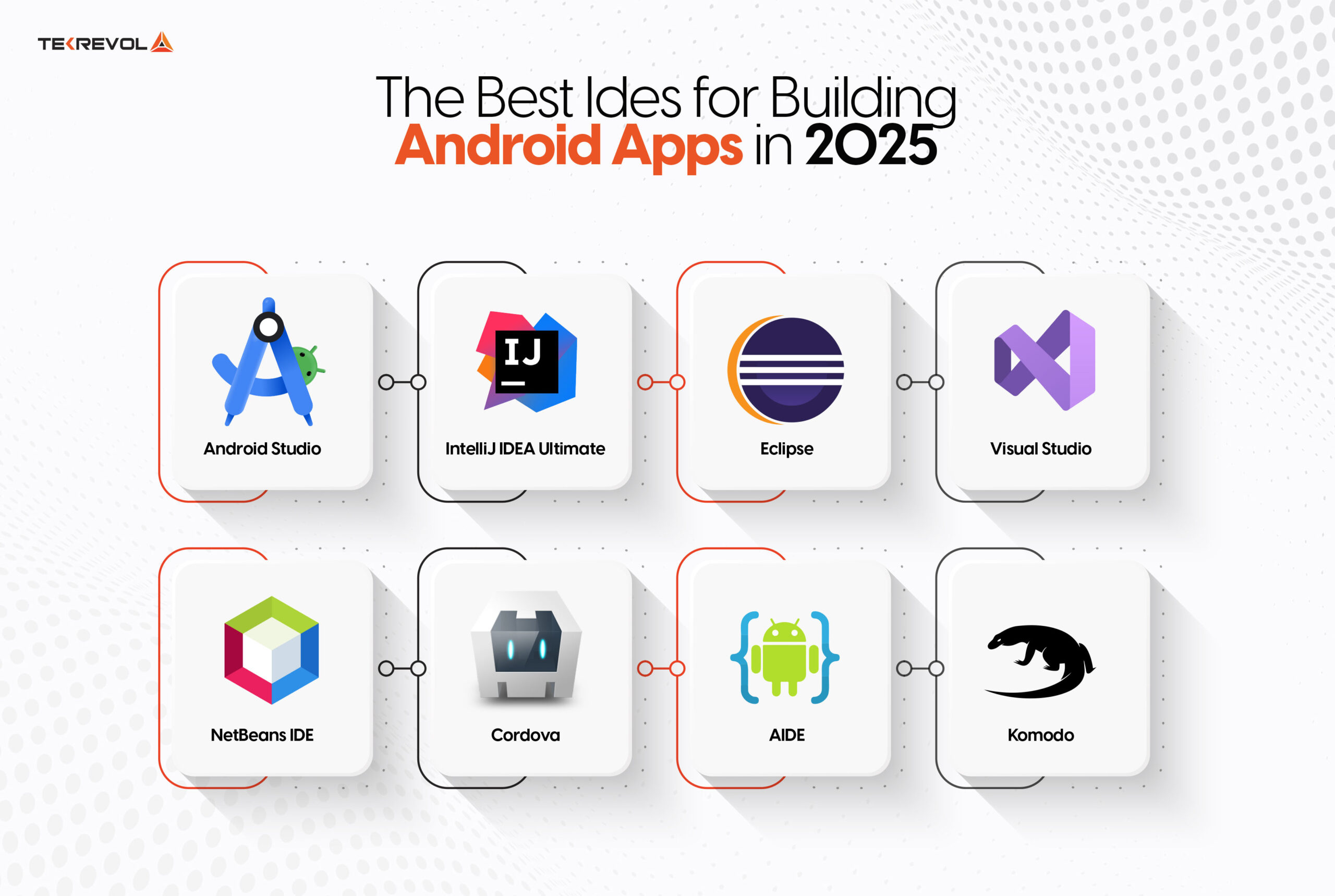
With a market share of 71.65%, Android OS stands as the leading choice for mobile devices worldwide. Developers are turning to advanced IDEs to streamline their workflow and build standout apps. Here are the best IDEs you should know about in 2026.
1. Android Studio
When it comes to Android development, Android Studio is preferred by many developers – correctly so. This is an intelligent IDE that is supported by Google and it comes with excellent authentications that help in making Android application development faster. It is expected that leading Android app developers utilize Android Studio to design new-age applications.
One of them is the lightning-fast and feature-complete emulator that lets you see how your app works right now. Moreover, with useful tools such as project and code templates, you will be able to create a view pager, a navigation drawer, etc., without any effort at all. It is the ultimate solution for your app development needs, offering everything you might require all under one roof.
Key Features:
- Advanced code editor with support for Java, Kotlin, and C++.
- Built-in emulator that allows users to test apps on a variety of devices.
- Drag-and-drop layout designing tools
- Instant run enables pushing code changes without needing to restart the app.
- Integration with Firebase and other Google services.
Limitations of Android Studio:
- Limited language support: It mainly comprises Java and Kotlin, possibly not suitable for developers targeting other languages.
- High RAM usage: This can consume significant system resources, potentially slowing down performance, especially with large projects.
- Android-specific: Only supports Android applications, and cross-platform development is not available.
Why Select Android Studio?
It is the industry standard and offers exceptional compatibility with Android development tools and frameworks. Mobile app development Company in Chicago prioritizes using Android Studio for the development of feature-rich, scalable, and high-performance Android applications.
2. IntelliJ IDEA Ultimate
IntelliJ IDEA is a great IDE that has been built by JetBrains and has a clean-looking UI and great tools for building enterprise and mobile apps. This is a smart code editor, that works with different programming languages such as Kotlin, Java, Groovy, and Scala, and is suitable for Android development.
Developers and companies widely use IntelliJ to create adaptive and fast applications on the Android platform. These come with built-in tools and powerful support for integrating JavaScript into the applications being developed.
Furthermore, IntelliJ IDEA does not only provide exceptional code productivity for Android development, but also for Go, Python, SQL, Ruby, PHP, and other languages which makes it fantastic code assistance. This one’s all about increasing the output and making coding a more fun project.
Key Features:
- Syntax suggestion and effective option checking.
- Web and desktop application development support.
- High compatibility with version control systems.
- Powerful refactoring tools.
Limitations:
- The Ultimate version will only be accessible with a paid subscription.
- Heavy on resources meaning, it may freeze on systems with low specifications.
- It may be inconvenient for front-enders, or anyone working with languages other than Java or Scala, because they may need to switch to a different IDE.
- Furthermore, if it loses connection to GitHub, it will randomly ask for the password without clear context as to why.
Why Choose IntelliJ IDEA?
It is suitable for those developers who would be developing Android applications along with other forms of applications within the same framework.
3. Eclipse
Eclipse is a free IDE designed for Java applications but supported for use with multiple programming languages. It started with Java language only but now supports other languages like C/C++, Python, Perl, PHP, etc.
If you are working on large projects which need a lot of customization then it can be very advantageous in developing an Android application. It is highly customizable, has a large plugin base, and can therefore be recommended to developers in need of flexibility and a greater degree of control.
Key Features:
- Lightweight and customizable.
- The software’s library of plugins offers many more features.
- It supports multiple programming languages.
Limitations:
- Slower than other modern IDEs such as the Android Studio.
- Android development may require a considerable amount of setup.
Why Choose Eclipse?
A handy solution for developers who appreciate opportunities and desire to work with something lightweight.
4. Visual Studio with Xamarin
It’s worth noting upfront: Xamarin itself is a cross-platform framework, not an IDE — it runs inside Visual Studio, which provides the actual code editor, debugger, and interface. Together, Visual Studio and Xamarin let you build native-based applications for Android, iPhone, and Windows all from one shared C# codebase.
When you use Visual Studio with Xamarin, you build Android applications based on shared C# code for both the UI and application logic, so you don’t need separate languages like Java, Objective-C, or Swift for each platform. Xamarin’s most impressive function is real-time previews across all connected devices, so the resulting application can be tested and adapted quickly. For C# developers who want to do cross-platform work without switching tools, this combination is a smooth and concise way to start.
Key Features:
- Supports one solution for Android, iOS, and Windows.
- Xamarin for creating a shared UI within the iOS, Android, and Windows applications.
- Debugging support and various diagnostic tools.
- The functionality of integrating with Azure cloud services.
Limitations:
- Complex for new learners because of the vast range of features it possesses.
- Potential licensing costs for organizations and business entities.
Why Choose Visual Studio with Xamarin?
It suits developers who want to deliver apps to multiple platforms within a single, shared codebase.
5. NetBeans IDE
NetBeans has evolved a lot since 2000 starting as an open-source project by Sun Microsystems. It has gained the followership of users and is linked with nearly a hundred organizations throughout the world.
If you need a proper tool for debugging and testing the Android app, NetBeans will help to guarantee the absence of errors in the app. The design is, therefore, very easy to navigate, making it well-suited for new Android application developers in case they are developing an application using Net Beans for the first time.
Key Features:
- Pre-determined computer codes that can be used to enhance the rate of delivery of a project.
- It includes comprehensive facilities for debugging the computer code.
- Supporting multiple languages such as Java and the Kotlin programming language.
- Flexibility to accommodate different operations and processes.
Limitations:
- Fewer options for Android-only, in contrast to Android Studio.
- It comes with slower updates and plugin support.
Why Choose NetBeans?
It is ideal for developers looking for an open-source platform with an active community and no costs associated with its use.
6. Cordova
Cordova from Adobe is an open-source Integrated Development Environment that is cross-platform and was originally built for Android. It is an open system of design that lets developers create applications with Web technologies such as HTML, CSS, and JavaScript.
The updated configuration of Cordova allows for easier deployment of Android apps than before, though it was still Cordova, the PhoneGap it once was. Although, you’ll still need to have Android Studio installed for the complete setup to process. If you are familiar with web technologies and decided to start making mobile applications, then Cordova is something you should look into.
Key Features:
- A unified codebase for all platforms that the program will support.
- The ability to utilize device hardware such as cameras and GPS as plugins.
- Fast prototyping and philosophy of getting things done.
- Free to use and highly malleable.
Limitations:
- Functionality may be less than that of actual applications designed for the operating system.
- Some kind of restriction concerning advanced features of used device.
Why Choose Cordova?
Cordova stands out as a tool suitable for developers who use web technologies to develop fast simple mobile applications.
7. AIDE
Google’s AIDE is undoubtedly one of the best IDEs available for Android game development, especially for pure Java console applications. This is a complete Android environment that is capable of building Android, Java applications, and PhoneGap applications written in HTML5, CSS, and C/C++.
It’s also important to note that AIDE is among the few app creators that lets users develop actual Android apps on virtual Android devices. Furthermore, it has engaging coding tutorials so is ideal for developers who wish to gain and get proficiency in fast-growing mobile application development.
Key Features:
- Enables actual development, debugging, and testing on the Android device itself.
- Java, C++, and XML for creating Android applications.
- Debugging and code suggestions during program execution.
- One of the greatest advantages is the ability to integrate it with Git for version control.
- Tutorial integration to assist novices on how to design simple applications.
Limitations:
- The small screen also becomes a problem with complicated development tasks.
- It lacks the functionality and efficiency of desktop IDEs like Android Studio.
- Debugging and testing complex apps requires a lot of space and is not very convenient on smaller devices.
Why Choose AIDE?
AIDE is a popular choice among Android app developers in Chicago, particularly for those who prefer to develop and test apps directly on their devices. It provides a lot of convenience and versatility, thereby making it an ideal tool for people on the move.
8. Komodo
Android programming can also be done in Komodo IDE, which is an open-source development environment and supports dynamic languages. Created in January 2007 by ActiveState, this IDE is chosen by developers as one of the favorite and most effective tools.
The last one is the Komodo IDE 12, which comes with the integrated Command Line Interface (CLI) that makes the work more convenient and several tasks easier. Regardless of whether you are a rookie developer or a trained professional, you can always choose Komodo IDE to greatly enhance your Android development process.
Key Features:
- Compatibility with multiple languages such as Python, PHP, and JavaScript.
- Applicable use of debugging tools for eliminating errors in the developmental cycle.
- Interoperability with version control systems such as Git.
- Smart interfaces and adaptable process diagrams.
Limitations:
- Not many exclusive features related to Android.
- Additional setup is needed for Android app development.
Why Choose Komodo?
Komodo is ideal for developers working with different programming languages and platforms and who appreciate versatility.
9. Gemini in Android Studio (and AI Coding Assistants)
No 2026 conversation about Android IDEs is complete without talking about AI. Google has built its own AI assistant, Gemini, directly into Android Studio, letting developers generate code, get contextual suggestions, debug errors, and even write unit tests without leaving the IDE. Beyond Google’s own tooling, many Android developers are also pairing their IDE of choice with AI coding assistants like GitHub Copilot, which plugs into Android Studio and IntelliJ IDEA alike.
Key Features:
- Context-aware code generation and auto-completion based on your actual codebase.
- Natural-language code explanations and inline debugging suggestions.
- AI-assisted unit test generation.
- Direct integration into Android Studio’s existing interface — no separate tool required.
Limitations:
- Suggestions still require review, AI-generated code can introduce subtle bugs if accepted without checking.
- Some advanced features may require a paid tier or subscription.
Why Choose AI-Assisted Development?
Rather than a replacement IDE, this is best thought of as a layer that makes any of the IDEs above faster to work in — most developers in 2026 are pairing their primary IDE with some form of AI assistance rather than treating it as optional.
Wrapping Up
Selecting the best Android IDE can impact how efficiently an application can be developed and built. In this guide, we’ve just reviewed some of the most outstanding IDEs out there to explain how you can use them for the development, testing, and deployment of your Android applications. We have also provided you with the main benefits and drawbacks of each, to help you make a decision.
Keep in mind that you can begin the project with one IDE while migrating to another IDE as you grow in your project. But the point is to weigh the possibilities wisely, analyze your project’s needs, and choose the best IDE.
- Looking for the perfect Android IDE to kickstart your app development?
- Our team is here to help you choose the best tools and guide you through every step of the process.


