



You have an idea for a camera app. Maybe it is a custom scanner for your enterprise workflow, a beauty filter app for consumers, or a smart document capture tool for a SaaS platform. Whatever the use case, the latest tools make Android camera app development more accessible than ever before.
CameraX covers 98% of active Android devices and handles the lifecycle complexity that used to require hundreds of lines of manual code. ML Kit puts real-time AI, such as face detection, OCR, and pose tracking, directly into the camera stream with no server required.
The difficulty is not the technology. It is knowing which tool solves which problem, in which order, on which devices. That is what this guide is for. We walk you through everything from understanding the APIs to writing your first preview, capturing images, handling permissions, integrating AI features, and preparing your app for the Play Store.
Whether you are a developer building an in-house or a business evaluating what Android camera app development actually involves, this is your complete Android app development reference for 2026.
The Android Camera App Market in 2026
Before you commit budget and time, you want to know the market is real. Here is what the data shows.
- Android holds 71.8% of the global smartphone OS market as of Q1 2025.
Source: StatCounter GlobalStats, 2025
Nearly three in every four smartphone users worldwide run Android. Building for Android first means your camera app reaches the largest possible audience before you invest in a second platform.
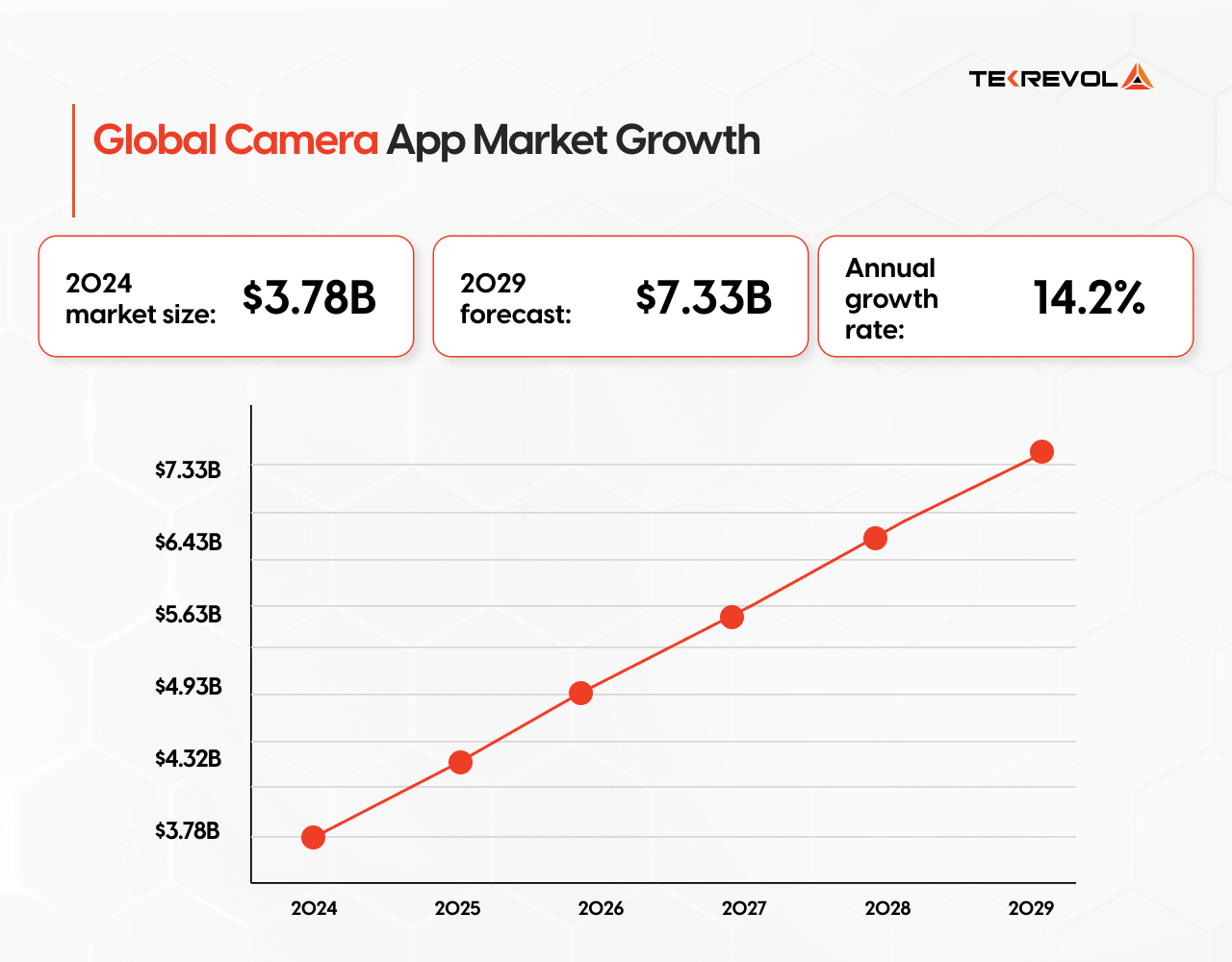
- The global photo and beauty camera app market was valued at $3.78 billion in 2024. It is forecast to reach $7.33 billion by 2029, growing at a 14.2% annual growth rate.
Source: Grand View Research / Vinova, 2024
This figure covers just one camera app vertical. Enterprise document scanning, retail AR, fitness coaching, and health monitoring represent equally large markets. The total opportunity for camera-first apps is significantly larger than this single number.
- Over 80% of professional Android developers use Kotlin as their primary language for new projects.
Source: JetBrains Developer Ecosystem Survey, 2024
If you are hiring for a camera project, Kotlin experience is a reliable signal that a developer is up to date with the Android ecosystem. Teams still working in Java face a steeper integration path with modern CameraX APIs.
- Fixing a software bug after release costs roughly 100 times more than fixing it during development.
Source: IBM Systems Sciences Institute (widely cited in software engineering literature)
For camera apps, the most expensive production bugs cluster around permissions handling, camera lifecycle errors, and orientation crashes on foldables. All are preventable in development. This stat reframes testing budget as a cost-saving decision, not an overhead.
The Window to Build an Android Camera App Is Open
Talk to TekRevol’s Android app development team to explore features, scope your idea, and build a high-performance camera app tailored to your vision. Your first consultation is completely free.
Let's Scope It →What Does an Android Camera App Actually Do?
Before scoping your project, it helps to understand the four core functions every camera app is built from. Everything else (filters, AI features, video recording, scanning) is added on top of these.
1. Preview: The Live View
This is what users see on screen before they take a photo or start a recording. It looks simple, but it must be smooth (no lag), properly oriented (portrait vs. landscape), and adapted to different screen sizes, including foldable phones and tablets.
2. Image Capture: Taking a Photo
When a user taps the shutter button, the app must capture the image, save it correctly, and confirm success or show a clear error if something goes wrong. The quality of this experience (speed, reliability, file handling) is what users notice most.
3. Video Capture: Recording
Video adds complexity. Your app must manage audio alongside video, handle storage limits, and give users clear recording controls. CameraX now supports slow-motion recording (120 or 240 frames per second) and high-resolution HDR video on capable devices.
4. Image Analysis: Processing Frames in Real Time
This is what makes camera apps intelligent. Instead of just capturing an image, the app looks at what the camera sees and takes action by reading a barcode, detecting a face, and recognising text on a document. This is where AI features live.
CameraX vs Camera2: Which Android Camera API Should You Use?
The most important decision in any Android camera app development project is the API. Choose wrong, and you spend weeks fighting device quirks instead of building features. Android offers three options, and here is how they compare:
| Factor | Camera1 | Camera2 | CameraX |
| Status | Deprecated ✗ | Active ✓ | Active ✓ (recommended) |
| Ease of use | Medium | Hard | Easy |
| Device coverage | Old devices only | API 21+ (most) | 98%+ of active devices |
| Lifecycle-aware | No | No | Yes — automatic |
| AI / ML ready | No | Manual wiring | Native ImageAnalysis |
| RAW capture | No | Yes | Yes (CameraX 1.5+) |
| AR support | No | Via ARCore | Via ARCore |
| Best for | Nothing new | Specialized RAW/pro | Almost all projects |
Camera1 (Deprecated, Avoid it)
Camera1 (Android’s original camera API). It is still technically functional on older devices, but Google officially deprecated it.
Using Camera1 today means you are building on a foundation with no future updates, no modern feature support, and increasing device compatibility issues. There is no reason to start a new project on Camera1 in 2026.
Camera2 (Powerful but Complex)
Camera2 is the low-level API that gives developers near-complete control over the camera pipeline. You can control exposure, ISO, white balance, lens focus, and capture individual frames from the sensor.
For professional photography apps, scientific imaging tools, or applications that need RAW (DNG) file capture, Camera2 is the right choice.
The trade-off is complexity. Camera2 requires managing camera sessions, capture requests, and device-specific quirks manually. A basic implementation that would take a few hours with CameraX can take days with Camera2. Unless you have a specific technical reason to use Camera2 directly, most projects should start with CameraX.
CameraX (Recommended for Almost All Projects)
CameraX is Google’s Jetpack library for Android camera development. It runs on Android 5.0 (API level 21) and above, covering over 98% of active devices.
It manages the camera lifecycle automatically. When your activity pauses, the camera stops. When it resumes, the camera restarts. You do not write that logic.
The API is built around four use cases:
- Preview (live viewfinder)
- ImageCapture (still photos)
- VideoCapture (video), and
- ImageAnalysis (frame-by-frame processing for AI and ML features).
You combine the ones you need and bind them to your activity lifecycle in a single call.
CameraX 1.5 added slow-motion video at 120 and 240fps, RAW and DNG capture, and the Feature Group API. That API solves device fragmentation for advanced features. You declare a priority list as HDR first, then 60fps, then stabilization, and CameraX finds the best supported combination for each device automatically.
Your API decision does not sit in isolation. See our guide to choosing the right technology stack for a broader view of how these early decisions connect across the full project.
Set Up Your Android Camera App Development Environment
Once you have chosen CameraX, the setup is straightforward. Here is everything you need before writing camera code.
Tools and SDK requirements
- Android Studio Ladybug (version 2024.2.1 or later): the official development environment for Android
- Kotlin 1.9+ is the right programming language for Android apps today, used by over 80% of teams on new projects
- Minimum SDK: API 21 (Android 5.0) matches the lowest version CameraX supports
- Target SDK: API 35 (Android 15) required for the latest CameraX 1.5 features
Adding CameraX dependencies
In your app-level build.gradle file, add the following:
implementation “androidx.camera:camera-core:${camerax_version}”
implementation “androidx.camera:camera-camera2:${camerax_version}”
implementation “androidx.camera:camera-lifecycle:${camerax_version}”
implementation “androidx.camera:camera-view:${camerax_version}”
implementation “androidx.camera:camera-extensions:${camerax_version}”
The camera-extensions dependency unlocks portrait mode, HDR, night mode, and face retouching. All run on the device’s own camera processor, not software filters. Include it from the start. You will want it.
Setting up AndroidManifest.xml For Permissions and Hardware Declarations
Before anything works, you need to declare camera permissions and hardware requirements in your manifest:
<uses-permission android:name=”android.permission.RECORD_AUDIO” />
<uses-feature android:name=”android.hardware.camera” android:required=”false” />
Setting android:required=”false” on the hardware feature is important. It means your app can be installed on devices that may not have a rear camera (tablets, Chromebooks), and you can handle the absence gracefully in code rather than blocking the install entirely.
Handling Camera Permissions the Right Way
Android 6.0 (API level 23) and above require runtime permission requests. Declaring a permission in the manifest is not enough. You must ask at runtime, and you must handle three outcomes:
- Granted: proceed to camera initialisation
- Denied (first time): show one clear sentence explaining why the app needs camera access, then offer to request again
- Permanently denied: the user chose ‘Don’t ask again.’ Show a dialog with a direct link to the app’s Settings page. Never leave the user on a blank screen with no path forward.
On Android 9 (API level 28) and above, background camera access requires a foreground service with a visible notification. Without it, background camera use fails silently or throws an exception. This catches many teams off guard during QA.
Permissions architecture is one of the areas where experience pays off most. If your team is new to it, the faster path is to hire Android app developers who have handled these patterns across real production releases.
Building a Live Camera Preview, Photo Capture, and Video Recording
With setup complete, you build three things: a live preview, photo capture, and video recording. In CameraX, each is a separate use case. You combine the ones you need and bind them in a single lifecycle call.
Step 1: Add PreviewView to your layout
android:id=”@+id/previewView”
android:layout_width=”match_parent”
android:layout_height=”match_parent” />
Step 2: Bind the Preview use case to your activity lifecycle
val cameraProvider = cameraProviderFuture.get()
val preview = Preview.Builder().build().also {
it.setSurfaceProvider(previewView.surfaceProvider)
}
val cameraSelector = CameraSelector.DEFAULT_BACK_CAMERA
cameraProvider.bindToLifecycle(this, cameraSelector, preview)
}, ContextCompat.getMainExecutor(this))
The key line is bindToLifecycle. CameraX starts the camera when your activity resumes. It stops the camera when the activity pauses or is destroyed. You do not write start and stop logic. The lifecycle owner handles it. This eliminates the resource-leak crashes that Camera2 implementations often produce when the app is backgrounded.
Step 3: Add ImageCapture for still photos
val imageCapture = ImageCapture.Builder()
.setCaptureMode(ImageCapture.CAPTURE_MODE_MINIMIZE_LATENCY)
.build()
// Triggered by shutter button:
val outputOptions = ImageCapture.OutputFileOptions.Builder(photoFile).build()
imageCapture.takePicture(outputOptions, executor, object : ImageCapture.OnImageSavedCallback {
override fun onImageSaved(output: ImageCapture.OutputFileResults) { /* saved */ }
})
Use CAPTURE_MODE_MINIMIZE_LATENCY when shutter speed matters most. Switch to CAPTURE_MODE_MAXIMIZE_QUALITY for document scanners or product photography tools where image sharpness is the priority.
Step 4: Video Recording with CameraX 1.5
CameraX 1.5 significantly expanded the video recording feature set. You can now record slow-motion video at 120 or 240fps. You can enable 10-bit HDR on capable devices. The Feature Group API combines HDR, 60fps, and stabilization without per-device compatibility code.
CameraX 1.5 also switched to Media3 Muxer for all video output. If the app process is killed mid-recording, the video file stays intact. This ended a common support complaint of corrupt files after unexpected app termination.
Adding AI and ML Features That Make Your App Stand Out
Most business briefs for camera apps include a long list of AI features: real-time filters, face recognition, object detection, automatic tagging, and smart cropping. These features are real, proven, and available. But adding them too early is one of the most common reasons camera app projects go over budget and over time.
The apps that earn strong reviews and justify real development budgets use the camera as a perception layer. They analyse what is in the frame, not just record it.
Google ML Kit
ML Kit is Google’s on-device machine learning SDK. It connects directly to CameraX’s ImageAnalysis use case. Each camera frame passes to an analyser. ML Kit returns results in real time, without sending data to an external server. On-device means no latency from a network round-trip, and no user data leaving the device.
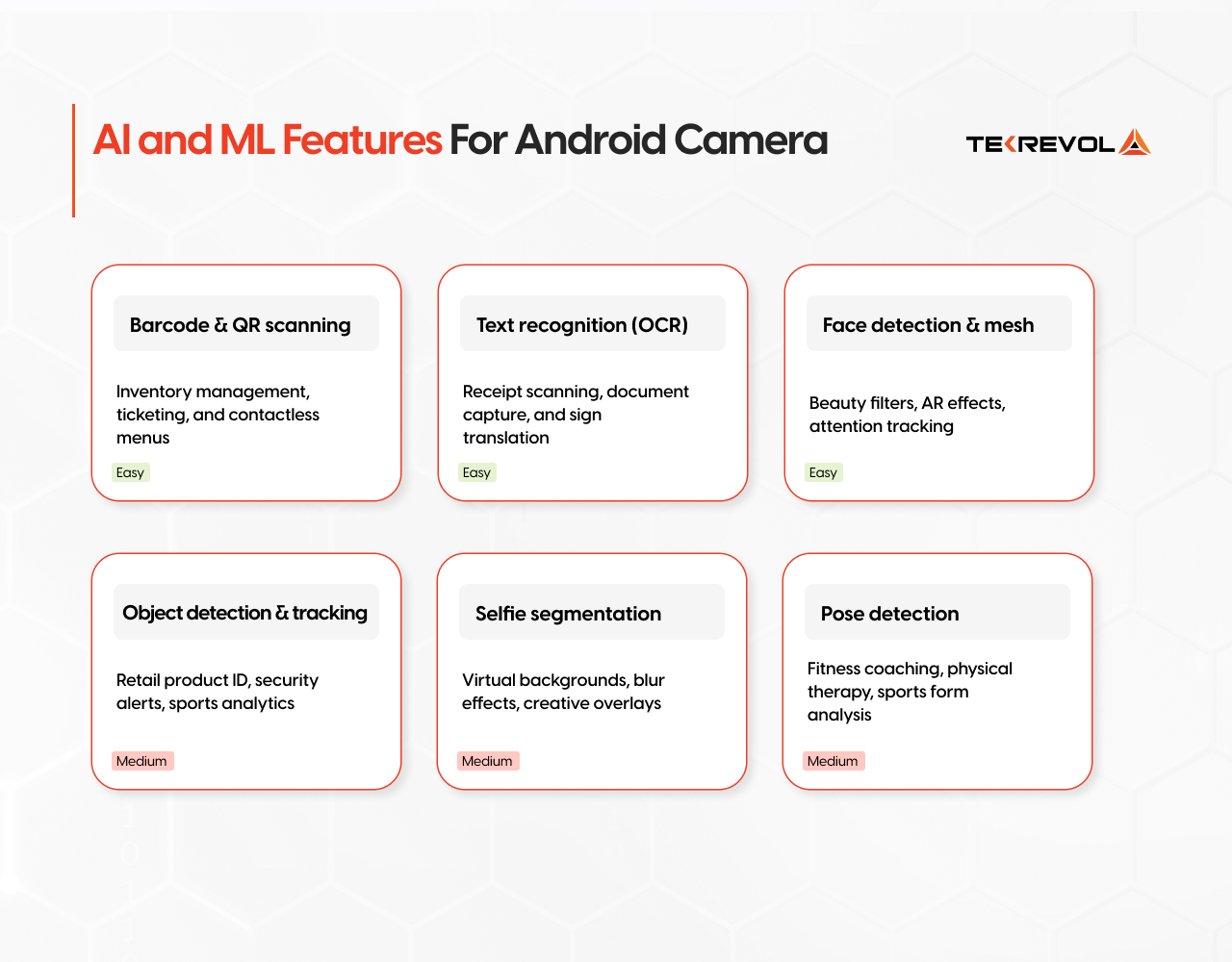
The six capabilities we use most in production:
- Barcode and QR scanning are the most common enterprise camera features. Reliable on low-end hardware. Production-ready in under a day.
- Text recognition (OCR) reads printed text from receipts, documents, and signs. OCR stands for Optical Character Recognition: it converts images of text into usable data
- Face detection and mesh can detect up to 468 facial landmark points. Powers beauty filters, attention tracking, and AR face effects
- Object detection and tracking to identify objects in the frame and follow them across video frames. Used in retail apps to identify products by pointing the camera at them.
- Selfie segmentation to separate the subject from the background in real time. Used for virtual backgrounds, blur effects, and creative overlays
- Pose detection tracks 33 body landmark points across the full frame. Core to fitness coaching apps, physical therapy tools, and sports performance analytics.
The ImageAnalysis integration pattern
STRATEGY_KEEP_ONLY_LATEST tells CameraX to drop older frames when the analyser cannot keep up. Without it, a slow ML model creates a growing frame backlog that makes the app unresponsive. With it, you always process the most recent frame and discard the rest automatically.
Always run your analyser on a dedicated background executor; never on the main thread.
ARCore for Augmented Reality
ARCore handles surface detection, motion tracking, and depth estimation. It maps the physical space around the device and lets you place virtual objects in it.
For the AR side of your camera project, see our comparison of augmented reality frameworks for Android before committing to ARCore specifically. There are meaningful differences between frameworks depending on your feature requirements.
Common AR camera use cases we have built: product placement previews (furniture, clothing try-on), spatial measurement tools, warehouse navigation overlays, and industrial maintenance guides. ARCore works alongside CameraX for standard capture features. For AR rendering itself, ARCore takes over the camera session.
Testing Across Devices: What Breaks and How to Fix It
A camera app that works on your development device but crashes on a mid-range phone will earn one-star reviews before you notice. Camera hardware varies across manufacturers in ways that documentation does not fully describe.
Here is the four-layer testing structure we use on every camera project:
- Unit tests cover business logic: file naming, image processing functions, and settings state. Use JUnit 4 or 5 with Mockito.
- Integration tests verify CameraX use case binding, lifecycle transitions, and permission state changes. Use the CameraX test utilities library.
- UI tests simulate full user flows with Espresso or UI Automator: open app → grant permission → tap shutter → verify image saved.
- Device lab run your APK on Firebase Test Lab or a physical device set. Minimum coverage: one Samsung Galaxy S-series, one Pixel, one mid-range Xiaomi, and one tablet.
The most expensive production camera bugs cluster around three areas:
- Permission denial edge cases,
- Camera lifecycle errors on screen rotation, and
- Orientation handling on foldables
All three appear in integration testing. None of them surfaces reliably on a single development device.
A Note on CQATest: What it is and What it is not
Some developers and users notice a process called CQATest running on Motorola devices. CQATest stands for Certified Quality Assurance Test. It is a diagnostic tool that Motorola pre-installs on its hardware. It tests the camera, sensors, and other components during manufacturing and quality assurance.
CQATest runs at the system level. It does not interact with third-party apps. Your camera app does not need to account for it. If it appears to run unexpectedly on a user device, a system update likely re-triggered a diagnostic check. It resolves on its own and does not affect installed apps.
Android Camera App Development Cost and Timeline
Here is how camera projects break down by complexity.
| App Complexity | Timeline | Est. Cost | Key Cost Drivers |
| Basic (photo + video capture) | 4–8 weeks | $15k–$35k | CameraX setup, permissions, storage |
| Standard with filters/editing | 10–16 weeks | $35k–$70k | Image processing pipeline, UI polish |
| AI-powered (ML Kit features) | 16–24 weeks | $70k–$130k | Model integration, real-time performance |
| AR / professional-grade | 24–36 weeks | $130k+ | ARCore, Camera2 RAW, sensor fusion |
Two costs are consistently underestimated in camera app projects:
- Device testing. A test on one device is the best-case scenario. Budget for 8 to 10 device profiles before release. This is not optional for a camera app that will reach a broad Android audience.
- OEM permission quirks. Samsung, Xiaomi, and Huawei ship Android builds with custom permission behavior that differs from stock Android. Budget specific QA time for OEM devices, especially for enterprise deployments where the target hardware is known.
Why Is Android Camera App Development So Complex?
Most founders rightly focus on the finished product. What’s easy to underestimate is everything that sits between that vision and the Play Store.
Android runs on thousands of device models. Camera hardware differs across every manufacturer. Samsung, Xiaomi, OnePlus, and Pixel devices all implement Android’s camera APIs in their own way. A feature that works on one device fails silently on another. Permissions behave differently across Android versions. Screen rotation crashes apps that were not built to handle it.
Add AI features (real-time object detection, face mesh, QR scanning), and complexity grows fast. The camera is no longer a viewfinder. It becomes the input layer for everything your app does.
It is a reason to understand what you are building before you start. If you are evaluating Android as a platform for the first time, our primer on what Android app development involves is a good first step before scoping a camera feature specifically.
Build Your Android Camera App with TekRevol
Android camera app development rewards teams that understand the full stack, from API selection and lifecycle management to device testing and Play Store compliance. Getting any of these wrong does not just slow you down; it shows up as crashes, bad reviews, and uninstalls.
As the best Android app development company, TekRevol has built production Android camera applications across enterprise, consumer, and SaaS verticals. Our teams work in Kotlin with CameraX, have direct experience integrating ML Kit and ARCore, and run structured device testing programs before every release.
Whether you need a complete Android camera app built from scratch, a technical audit of an existing codebase, or a development partner for a long-term mobile product, we are ready to scope it with you.
Ready to Scope Your Project?
Discuss your Android camera app idea with TekRevol’s experts and get clear guidance on features, development scope, and timelines. We typically respond within one business day.
Let’s Connect


