It’s 2026, and if your business is not on Apple Maps, you are missing out on a huge audience, given that 75 to 100 million people use Apple Maps every month to find nearby shops, restaurants, and services. (source: Reputation) That’s just for the US; imagine the global turnover if you add business to Apple Maps.
Despite the obvious profit margin, many remain unbothered because they find it difficult to claim or update their Apple Maps business listing. Their laziness can be an advantage to you.
Wanna know how? Well, having a complete and verified listing helps you enhance your local SEO so that potential customers can find accurate information about your business.
This guide will walk you through the detailed process of how to get my business on Apple Maps. We will also disclose how to change the business address or hours on Apple Maps, ensuring you reach the right audience effectively.
Why You Should Add Business to Apple Maps in 2026
You should register business on Apple Maps for greater local visibility, increased foot traffic, and improved search rankings. According to Search Engine Journal, approximately 20% of local searches now happen on Google and Apple Maps. The fact alone highlights why it’s become important to add business to Apple Maps in 2026.
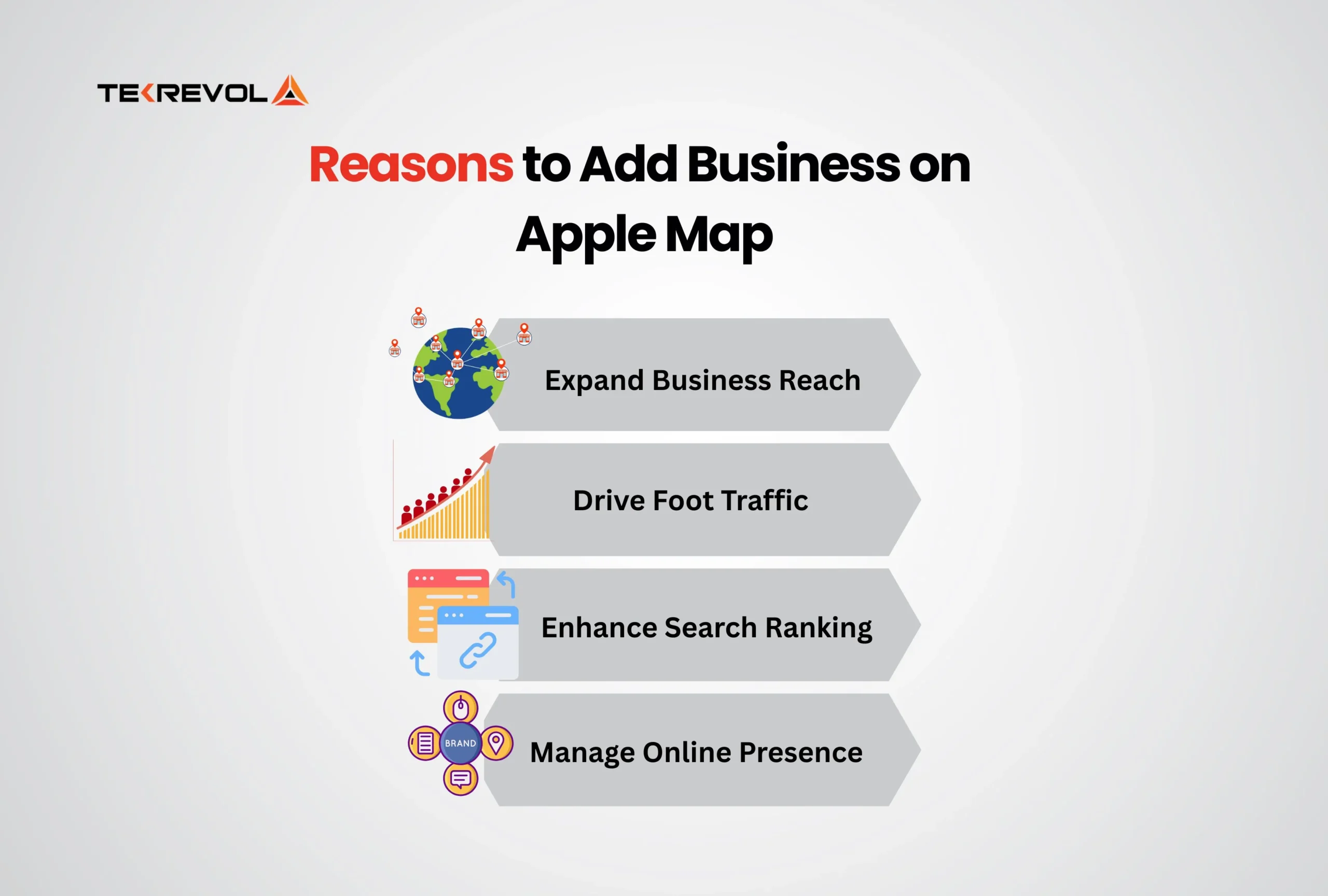
Expand Your Reach
Apple Maps is more than a navigation tool for local businesses. It serves as a local guide that enhances their online presence. You can add business to Apple Maps to make your offer visible to millions of potential customers. Through complete and accurate listings, you can also improve your local SEO, thereby making your business frequently discoverable in search results.
Drive Foot Traffic
Recent Apple App Store stats show that 76% of people who conduct a local search on their smartphone visit a business within a day. Once you verify business on Apple Maps, it becomes a convenient option for nearby customers, leading to increased foot traffic.
Enhance Search Ranking
A verified and optimized Apple Maps listing also impacts your search ranking in a positive way. Maintaining consistent and accurate business data across platforms, you give signals to search engines that your business is trustworthy, potentially boost its position in search results.
Mangane Online Presence
Besides availing the above advantages, you can also use Apple Business Connect to manage your business information, respond to reviews timely or engage with customers. It ascertains that your business maintains a professional online presence, letting potential customers connect with you directly
Stay Visible to AI Search
Local search is shifting from keyword lists to direct AI answers. Consistent, structured business data across Apple Maps and other platforms is increasingly what AI assistants rely on to recommend businesses — meaning a clean, accurate Apple Maps listing isn’t just for human searchers anymore; it’s part of how you get surfaced by AI-driven local search too.
Don’t let potential customers pass you by.
Partner with TekRevol to Add Business to Apple Maps for better reach and visibility.
Book Your Spot NowIs It Free to add a business to Apple Maps?
Yes, you can add a business to Apple Maps for free. Simply create your Apple Maps business listing and manage it through the Apple Business Connect login. Optional paid features like advertising or promoted listings exist, but they are not required to appear on the map.
Sign in to Apple Business Connect to add your business information and complete verification. Once listed, you can maintain accurate data and optionally explore paid features to increase visibility.
To claim your listing, ensure customers see accurate hours, location, and contact details. Verified listings also support local SEO benefits, making your business easy to find in searches.
Prerequisites for Adding Your Business to Apple Maps
To add a business to Apple Maps, there are certain Apple Maps requirements that you need to fulfill. You must have an Apple ID and access to Apple Business Connect.
Aside from that, accurate business information like name, address, phone number, website, hours, and primary category is compulsory. Another important criterion is providing high-quality images of your storefront or products.
Avoid common mistakes such as duplicates, outdated, or wrong categories to add business to Apple Maps correctly. These issues can delay the Apple Maps verification process and affect visibility. Prepare your business listing carefully to ensure a smooth business information verification process.
Since your business Apple ID becomes the account of record for the listing, enable two-factor authentication on it before you begin — this protects your listing from unauthorized changes, especially if multiple team members will manage it later.
Having all prerequisites ready also saves time. Once you have all the details ready in hand, proceed to create and claim your Apple Maps business listing through Apple Business Connect.
Apple Business Connect and Apple Maps Business Manager Explained
Before you follow the four-step walkthrough below, it helps to know the actual name of the platform you will be signing into. Apple manages every business listing on Apple Maps through a single tool called Apple Business Connect. This is the same platform that some guides still call Apple Maps Connect or Apple Maps Business Manager. The name changed, but the job is the same: it is the free dashboard where you claim your listing, verify ownership, and control how your business shows up to the 75 to 100 million people who use Apple Maps every month.
You sign in with your Apple ID, and that account becomes the owner of the listing. From there, Apple Business Connect is where you push every update covered later in this guide, including your address, your hours, your category, your logo, and your photos. If you have multiple locations, the same dashboard handles all of them under one login, so a regional chain does not need a separate account per store.
Apple Business Connect also runs the verification step that gates your listing from going live. Verification on Apple Maps Connect usually takes up to 5 working days, and Apple may call the phone number on the listing or ask for extra documents before it approves you.
Once you know Apple Business Connect is the tool, the rest of the guide is straightforward. Every ‘log in’ instruction in the next sections points to the same dashboard at Apple Business Connect, so keep that tab open while you work through the four steps.
Beyond Apple Maps: Where Else Your Listing Appears
Your Apple Business Connect listing doesn’t just power your Apple Maps pin — the same data feeds Siri, CarPlay, Apple Wallet, and Apple Watch. In 2026, Apple also rolled out Apple Business, a broader platform tying these surfaces together, with local ads in Maps now rolling out for businesses in the US and Canada. A complete listing means your business can surface in a voice search on Siri just as easily as a map search — one profile, multiple discovery points.
How Do I Add My Business to Apple Maps? [4 Easy Steps]
You can easily add business to Apple Maps using the Apple Business Connect login, from where you can create, claim, and verify your listing to make sure customers find you. Here’s how to get on Apple Maps:
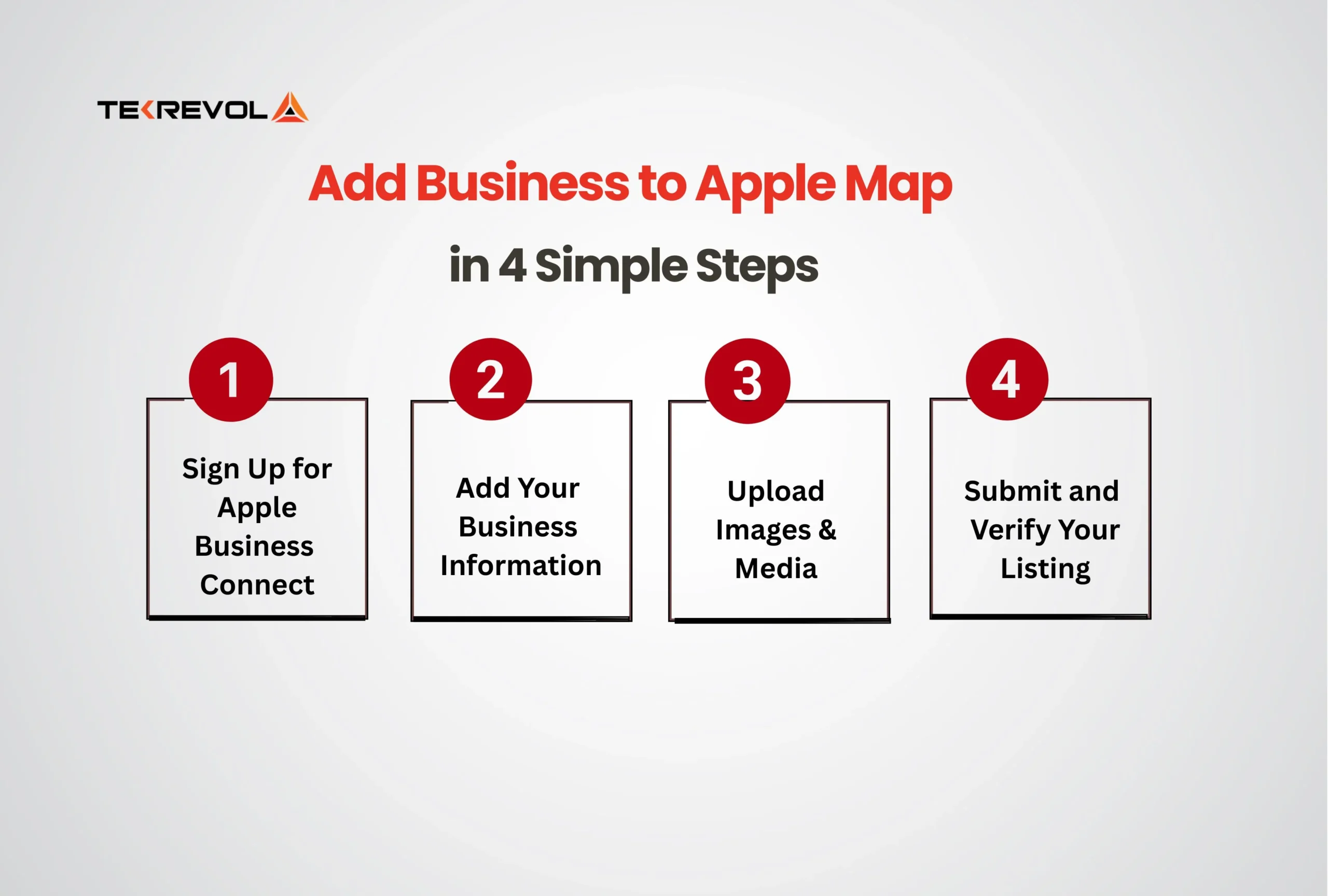
Step 1: Sign Up for Apple Business Connect
Visit Apple Business Connect and sign in with your Apple ID. In case you haven’t completed business account setup, create a new one on Apple’s website.
Once logged in, you’ll access your dashboard, where you can manage your business listings. This is the starting point for how to put my business on Apple Maps.
Step 2: Add Your Business Information
Click on the tab “Add a Location” to enter your business details like business name, address, phone number, website, and category. Do check that everything is accurate and matches other online listings, as correct categories and accurate data support business information verification.
Category selection has a bigger impact on local visibility than many business owners realize. Birdeye’s 2026 research found that 86% of business profile impressions come from category-based or “near me” searches, making your primary category a key factor in whether nearby customers discover your business.
Step 3: Upload Images and Media
Add high-quality images of your storefront, products, or services, such as an ecommerce app with a logo for brand recognition. Apple recommends using clear, professional photos that represent your business. This step helps your listing stand out and look trustworthy to customers. You can use videos to add extra value.
While you’re in the dashboard, double-check your map pin placement. Zoom in and drag it to match your exact storefront location, an inaccurate pin, even a block off, can send customers to the wrong entrance or building.
Step 4: Submit and Verify Your Listing
Once your details are entered, submit your listing for verification. Apple may verify your business through phone, email, or postcard. Apple Maps verification process takes 5 working days, but can vary depending on the case.
The successful verification brings your business to Apple Maps. After your listing is live, refresh it from time to time with changing hours, new images, and updated contact info to stay relevant on Apple Maps.
Step 5: Use Showcases to Promote Offers Directly on Your Listing
Beyond static business info, Apple Business Connect lets you create Showcases, time-limited promotions, or events that appear right on your Apple Maps listing. A limited-time discount, a seasonal menu, or an upcoming event can all be pushed as a Showcase, giving customers a reason to act immediately instead of just noting your hours and moving on.
Make it easy for iPhone users to find you.
Add Business to Apple Maps confidently with TekRevol’s expert team.
Let's Connect!How to Change Business Hours on Apple Maps?
Successfully add business to Apple Maps? You can then update your business hours to confirm rotation in shifts and working slots using Apple Business Connect.
- Log in to Apple Business Connect with your Apple ID.
- Select the business listing you want to update.
- Find the hours section and click on the Edit tab.
- Enter your current open and close times. You can use the “Add Seasonal/Holiday Hours” option to reflect a temporary change.
- Save Changes so updates appear on Apple Maps.
Keeping hours accurate ensures customers see the correct times when searching for your business on Apple Maps. Regular business profile optimization also improves your Apple Maps business reliability and aligns it with broader iOS app trends.
How to Change Business Address on Apple Maps?
Follow these simple steps to update your business address on Apple Maps directly:
- Sign in to Apple Business Connect with your Apple ID.
- Select your business from the listing you want to update.
- Open the address section to make changes.
- Enter the new address, including street, suite, or unit numbers for accuracy.
- Verify contact details like phone number and email, if it is current for verification.
- Save your updates. Apple may verify via phone, email, or postcard.
- Double-check to make sure your updated Apple Maps business listing appears correctly.
If your business is of a kind that relies on locations, like retail stores or offices, then update its address promptly to maintain visibility. You may hire iOS developers who can integrate location-based features in apps to add business to Apple Maps that syncs with real-time updates and a better customer experience.
Why Is My Business Not Showing Up on Apple Maps? [Common Issues]
Your business may not appear on Apple Maps due to common issues, like an unverified listing, duplicate entries, incorrect categories, or outdated information. These mistakes prevent your listing from showing in local searches.
- Unverified Listing: Apple may not display your business if you haven’t verified it. Complete verification via phone, email, or postcard.
- Duplicate Listings: Having two or more listings for the same business confuses the system. Remove duplicates to ensure your listing appears correctly.
- Incorrect Categories: Poor Apple Maps categories make your business invisible in searches. Select the category that best matches your services.
- Outdated Information: If your address, hours, or phone number are outdated, Apple may not display your listing. Keep info current.
For persistent issues, contact Apple Business Connect Support. Many businesses, from small retailers to local service providers, regain business visibility by fixing these errors. They also boost customer reach by linking apps with maps, which can help 2x revenue with custom iOS apps.
How TekRevol Helps You Add Business to Apple Maps
Adding a business to Apple Maps is simple, but optimizing it for visibility takes expertise. Many miss out on traffic due to outdated details or duplicate entries.
At TekRevol, we combine iOS app development expertise with local SEO strategies to make your Apple Maps business listing stand out.
We set up, verify, and optimize your profile with accurate information and high-quality media. Our team also keeps your listing updated with the latest hours and business categories, so you stay visible in Apple searches.
We also audit your Name, Address, and Phone (NAP) consistency across Apple Maps, Google Business Profile, and other major directories, inconsistent data across platforms is one of the most common (and most overlooked) reasons local listings underperform.
Add Your Business to Apple Maps Quickly
Instead of handling everything alone, work with TekRevol for ongoing support.
Contact Us Today